Aladamus Enhancer CGB Mir [Creative Strong] v1.0
We recommend first reviewing the Guide to the Proper Workflow for Using AI Upscaler & Enhancer on Aladamus.
Aladamus Enhancer CGB Mir [Creative Strong] v1.0 Price: 500 Credits per 10% of the image area. Minimum generation cost: 500 Credits. Learn more. is a premium-quality tool for locally enhancing (generating) image elements or objects within a selected mask. It significantly transforms the original object, creating a new and improved version.
Unlike Aladamus Enhancer CGB Mir [Creative Medium + Saving Geometry] v1.0, this tool does not aim to precisely preserve medium and small geometric shapes from the uploaded image (Upload Image). Instead, it prioritizes working with the overall, larger shapes and structures of object groups. Nevertheless, in most cases it still maintains a general similarity to the medium-sized and sometimes even smaller geometric forms of the original objects.
The key characteristic of Aladamus Enhancer CGB Mir [Creative Strong] v1.0 is that it may occasionally generate objects that match the original in meaning but differ noticeably in the silhouette contours and medium- or small-scale geometric details.
Aladamus Enhancer CGB Mir [Creative Strong] v1.0 is primarily designed for and delivers its best visual quality when working with the following types of objects:
- Furniture
- Items
- Natural environment elements:
- Plants
- Landscapes
- Mountains
- Sky
- Sea
- Waterfalls
- Glaciers
- Fabrics
- Animals
Aladamus Enhancer CGB Mir [Creative Strong] v1.0 can also be used with other types of objects (for example: people, materials, etc.), but we cannot guarantee the same level of graphical quality as when it is applied to the object categories listed above.
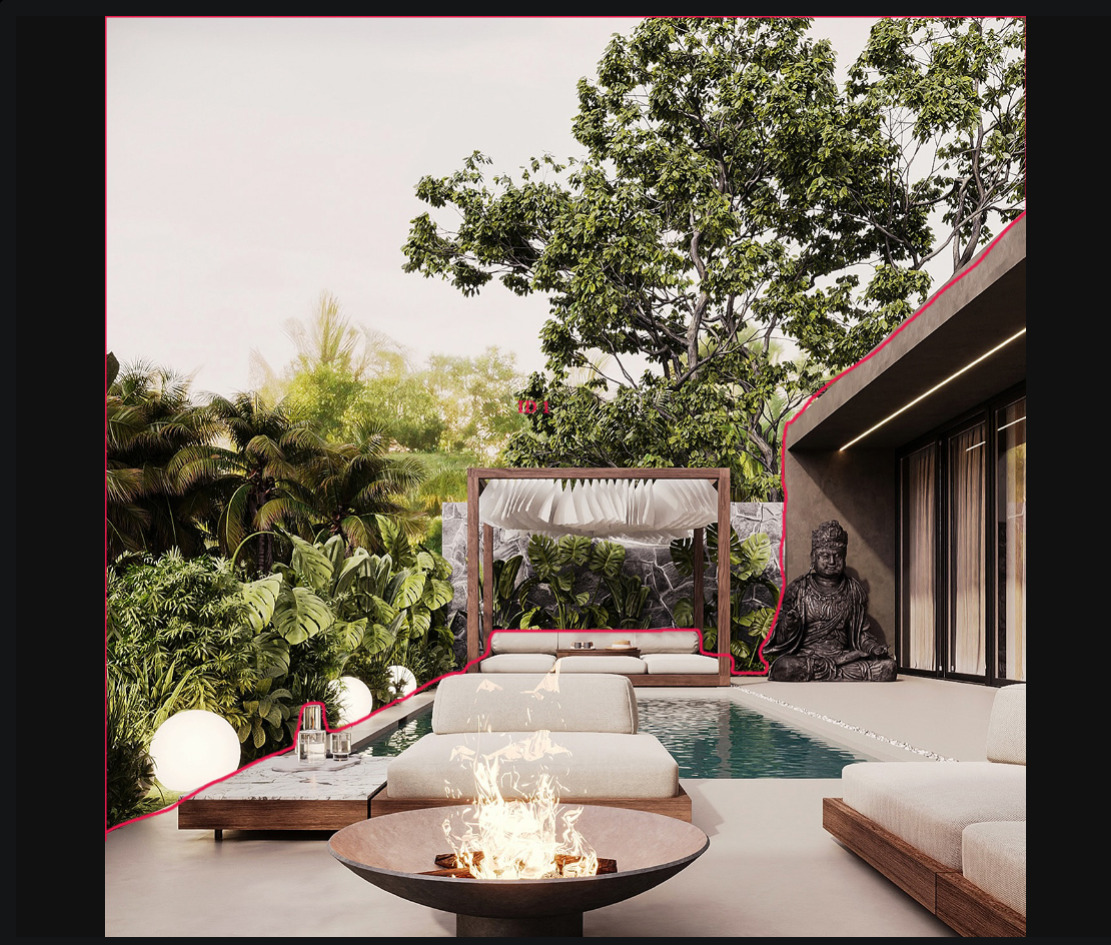
Let's select the image area we want to enhance:
Generation result:
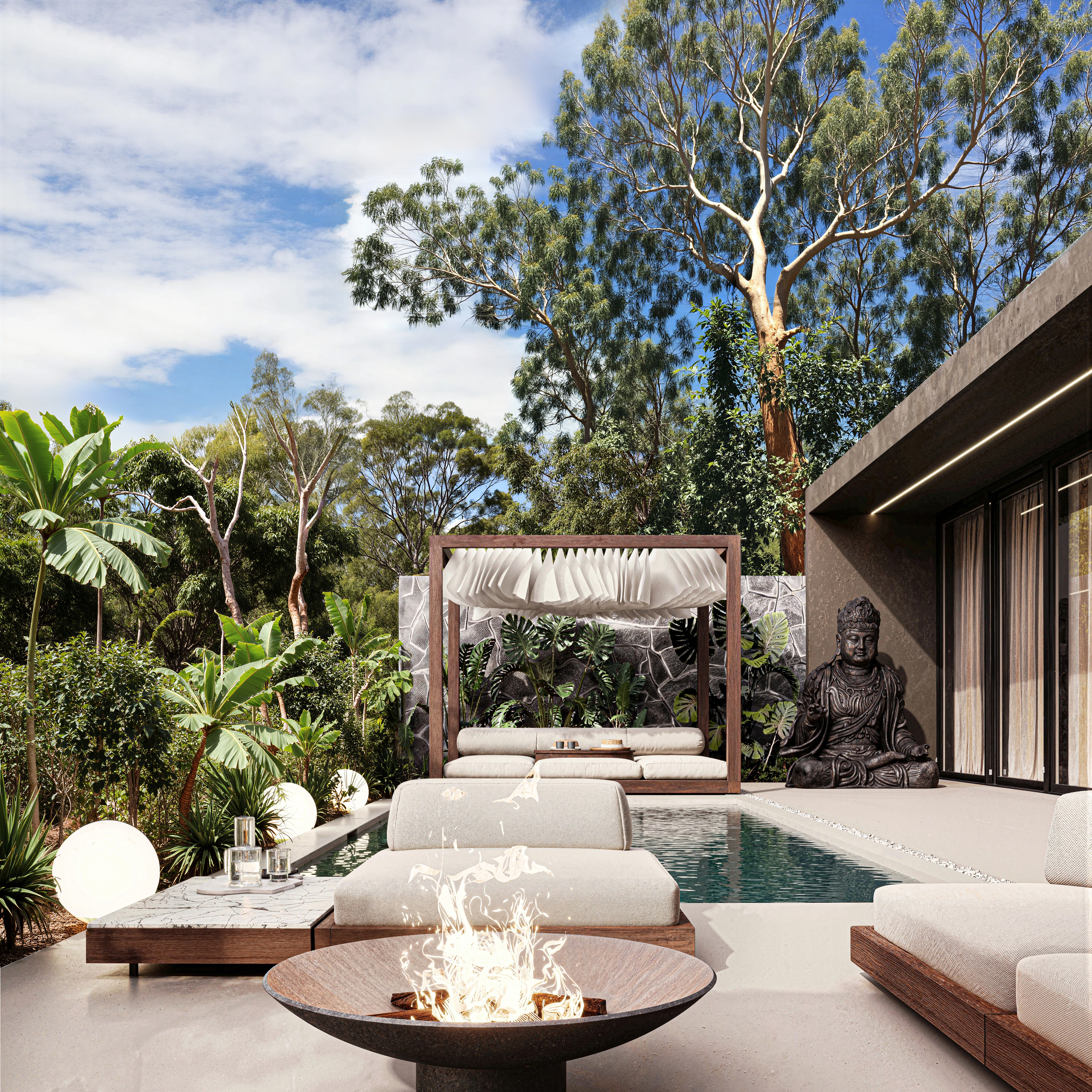
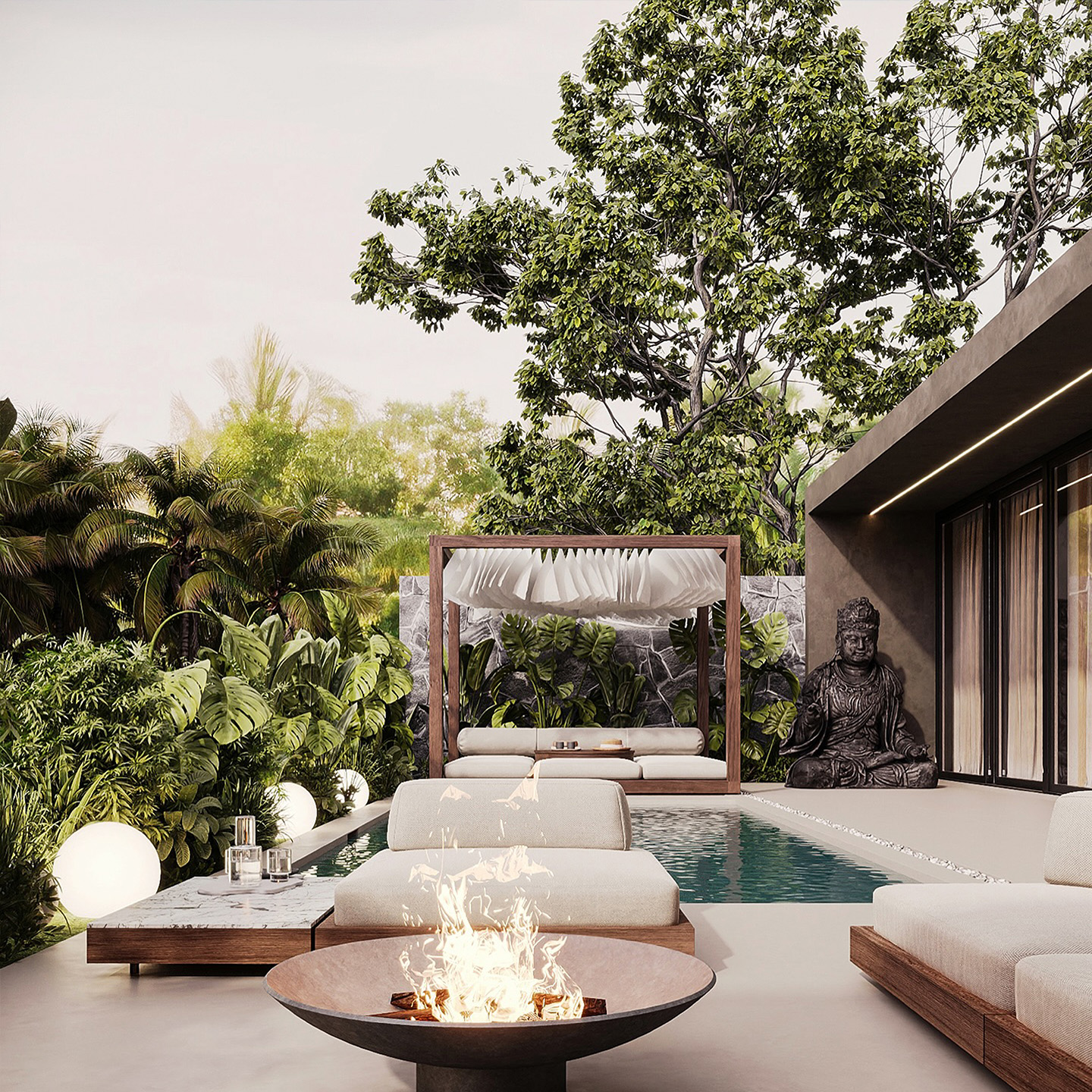
As shown in the image, the tree in the upper-right corner was generated without strict preservation of the original object's medium and small silhouette shapes and contours. The exact outlines were not preserved; however, the neural network still generated a tree in the area where the original tree was located. This gives the AI greater creative freedom to generate new and visually impressive objects.
Aladamus Enhancer CGB Mir [Creative Strong] v1.0 can be used as a standalone tool independently of other tools. However, to maximize its potential, we recommend first preparing the image using Aladamus AI Upscaler [Standard quality] v1.0, creating better conditions for subsequent generation.
Step-by-Step Tool Setup Guide
1. AI Upscaler & Enhancer
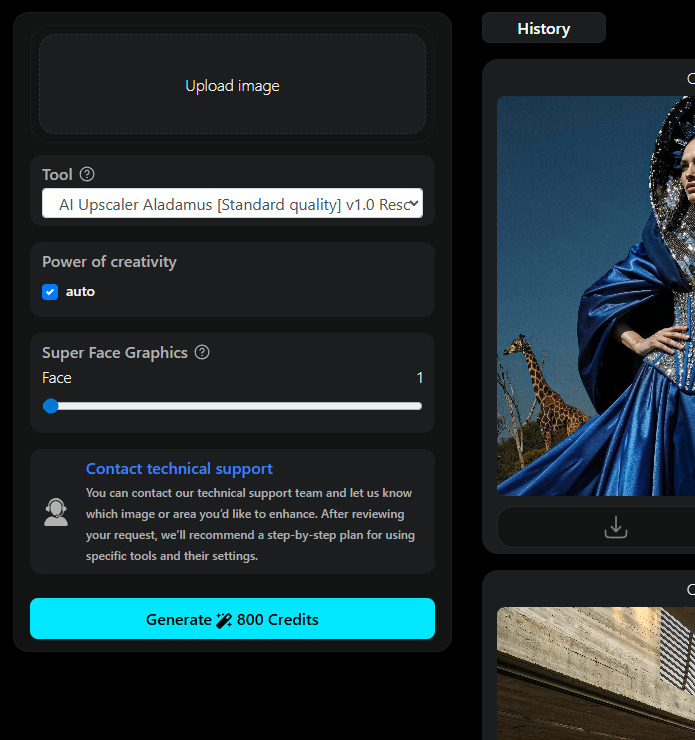
Go to the AI Upscaler & Enhancer section.
2. Upload Image
Upload the image you want to enhance.
Note: Supported formats are JPEG, WEBP, and PNG. Maximum image resolution is up to 10000px.
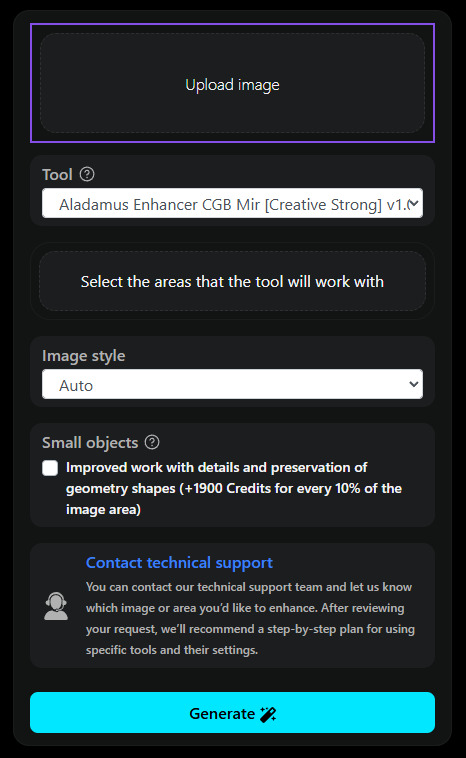
3. Tools
Select the tool Aladamus Enhancer CGB Mir [Creative Strong] v1.0 [Price: 500 Credits per 10% of the image area].
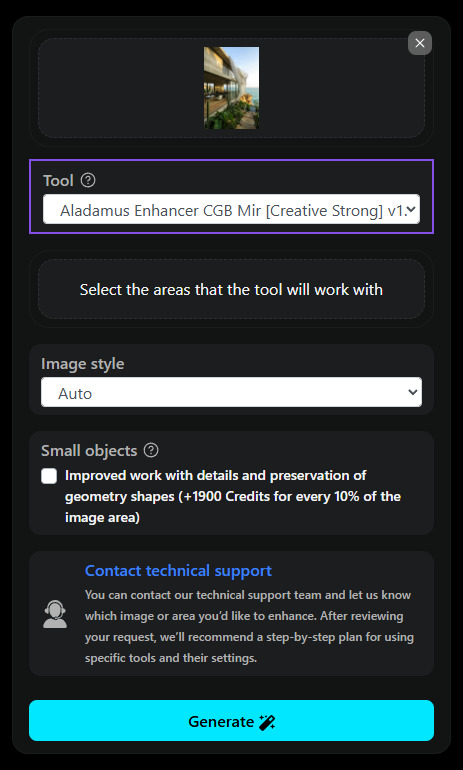
4. Select the areas that the tool will work with
Specify the local area where the tool should be applied. Click the Select the areas that the tool will work with button.
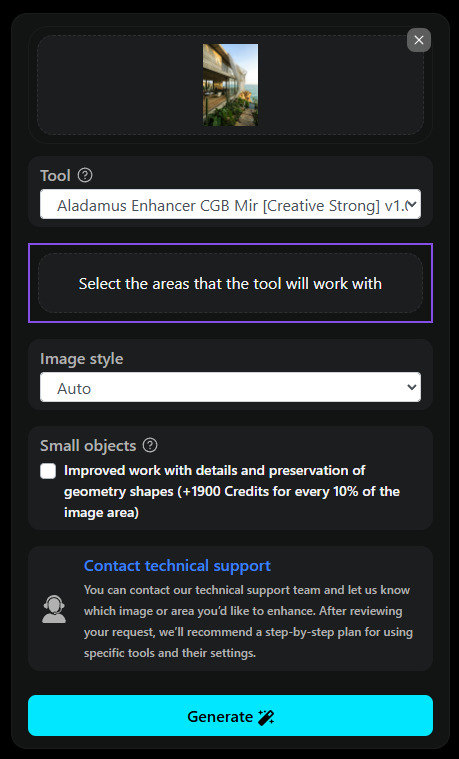
Clicking the Select the areas that the tool will work with button opens a window where you can select the objects or image regions you want to enhance.
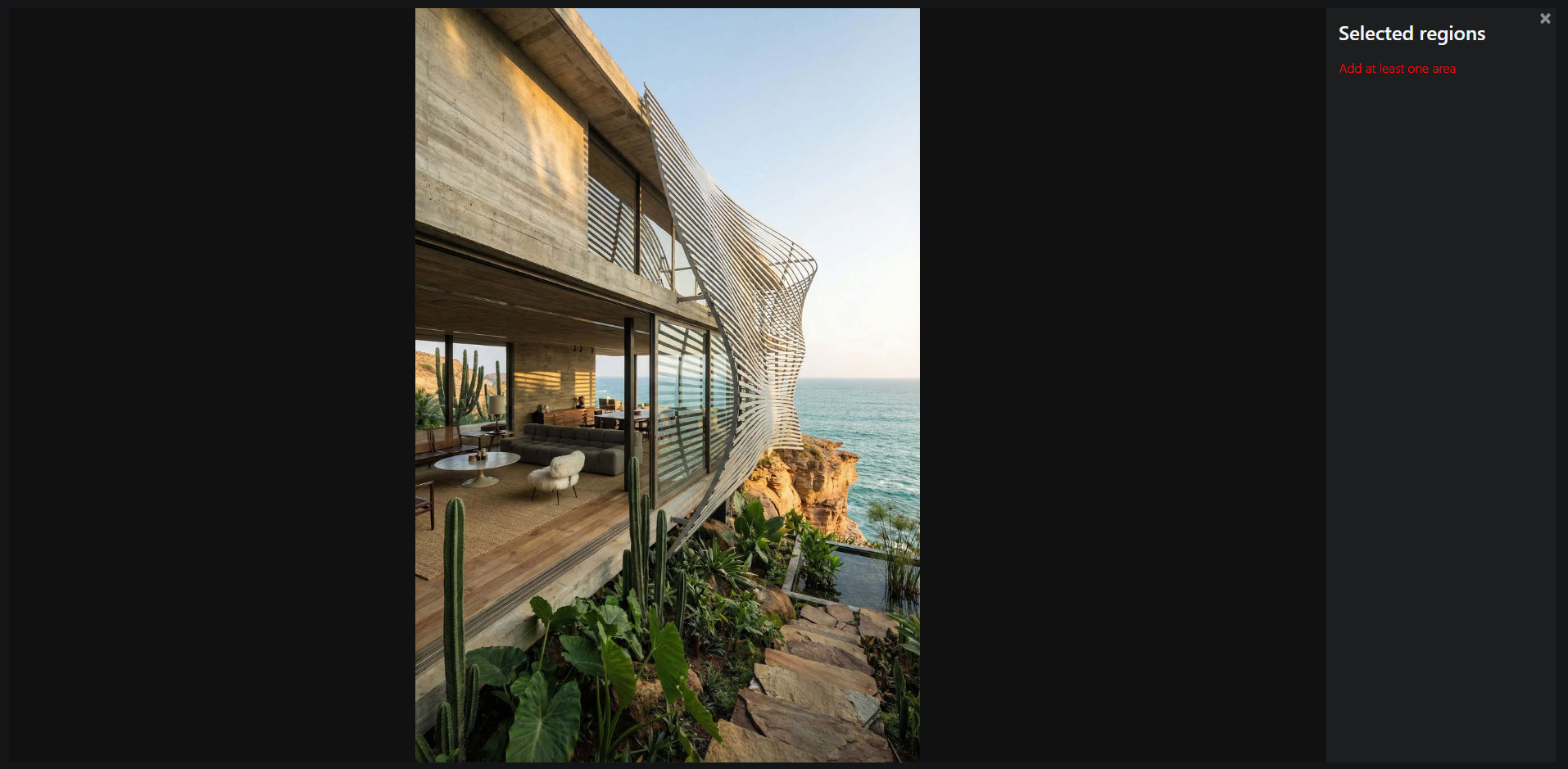
Working with Areas:
- Hold down the left mouse button and outline an area (preferably following the object's contour or silhouette). You can create multiple areas. Each one is highlighted with its own color.
- Any area can be removed individually by clicking its cross icon, or all areas can be removed at once using Delete all regions.
-
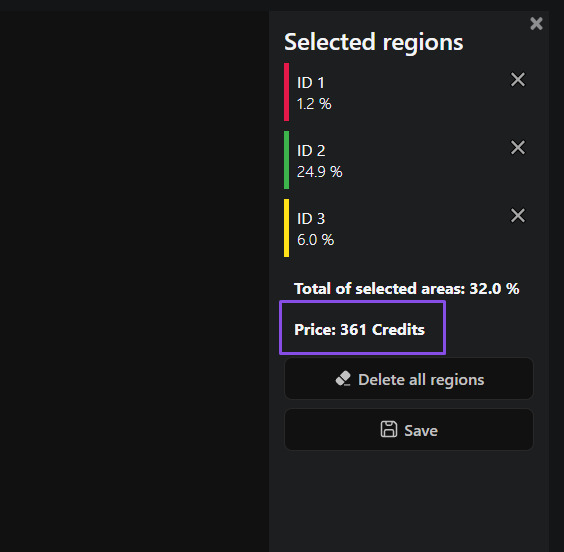
Generation cost is calculated automatically based on the combined area of the bounding boxes of
all selected regions.
In addition, 20 Credits are added for each extra selection beyond the first one.
The minimum generation cost is 100 Credits. Even if the total selected area and additional
selections would
result in a lower amount, the minimum charge will still be 100 Credits (shown in the example
below, highlighted
with a purple frame).
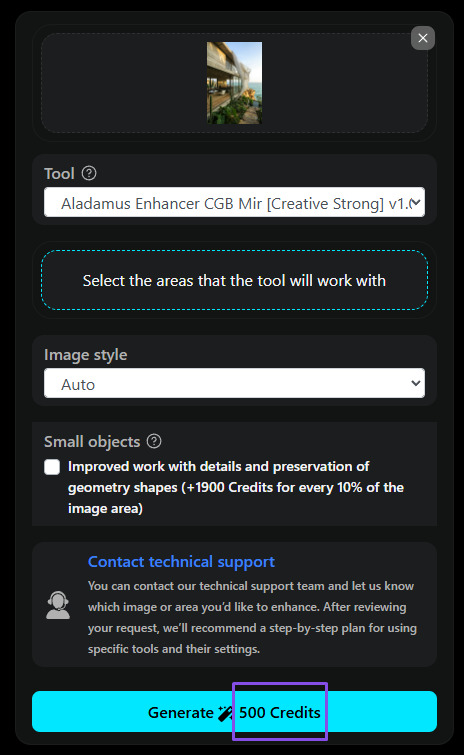
The price is also displayed on the Generation button.
-
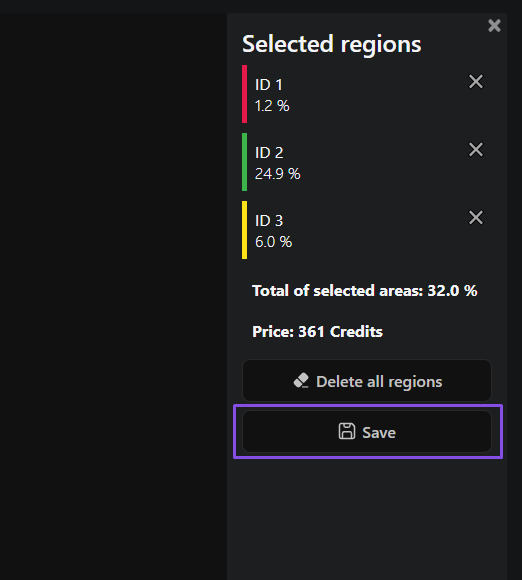
Save — saves the result.
(If you close the window using the X button in the upper-right corner, your selected areas will
not be saved.)
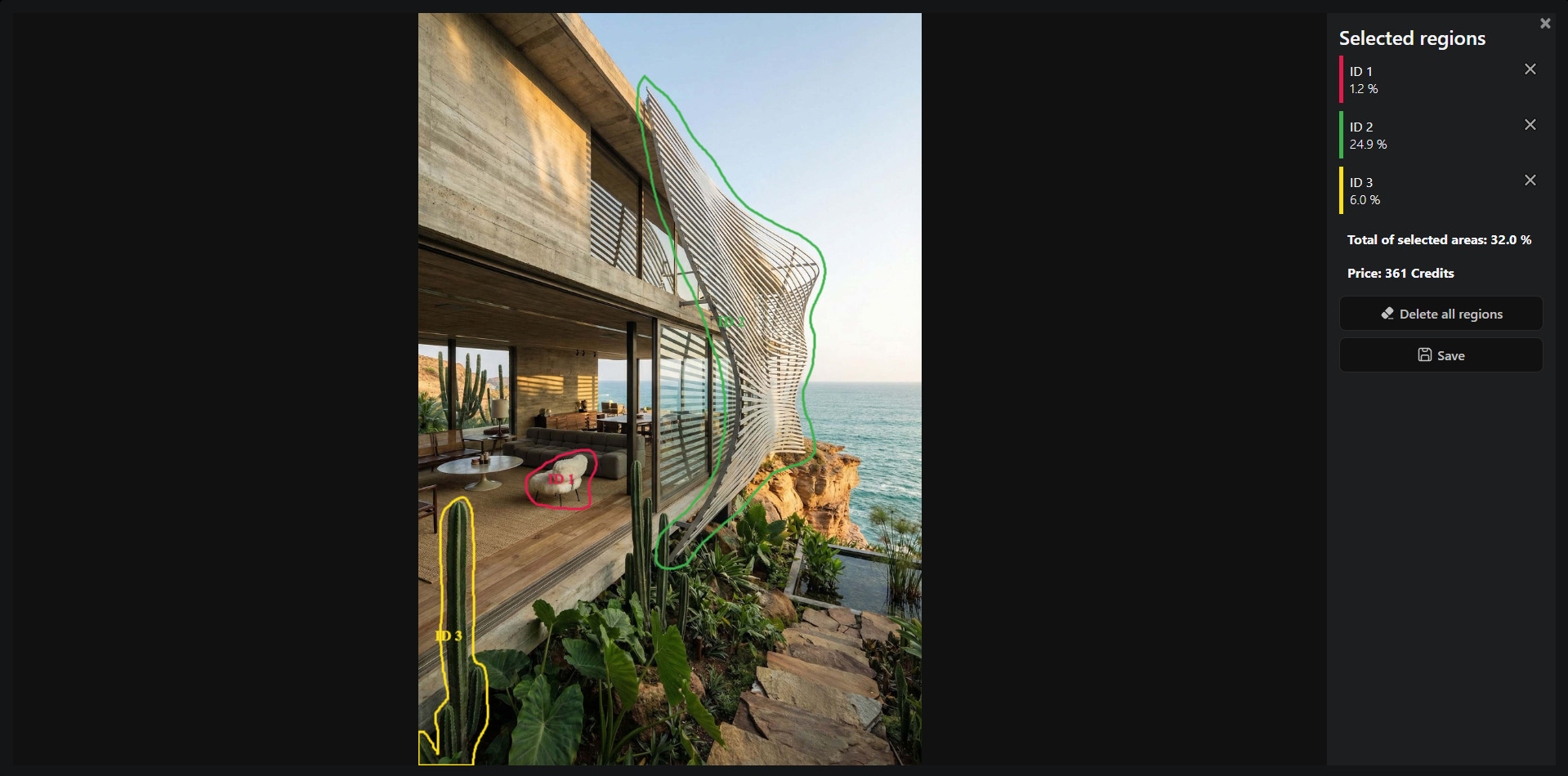
Here is an example of an optimal selection that provides both better graphical enhancement and better value. The total selected area is 32%. We recommend selecting complete objects or object elements whenever possible.
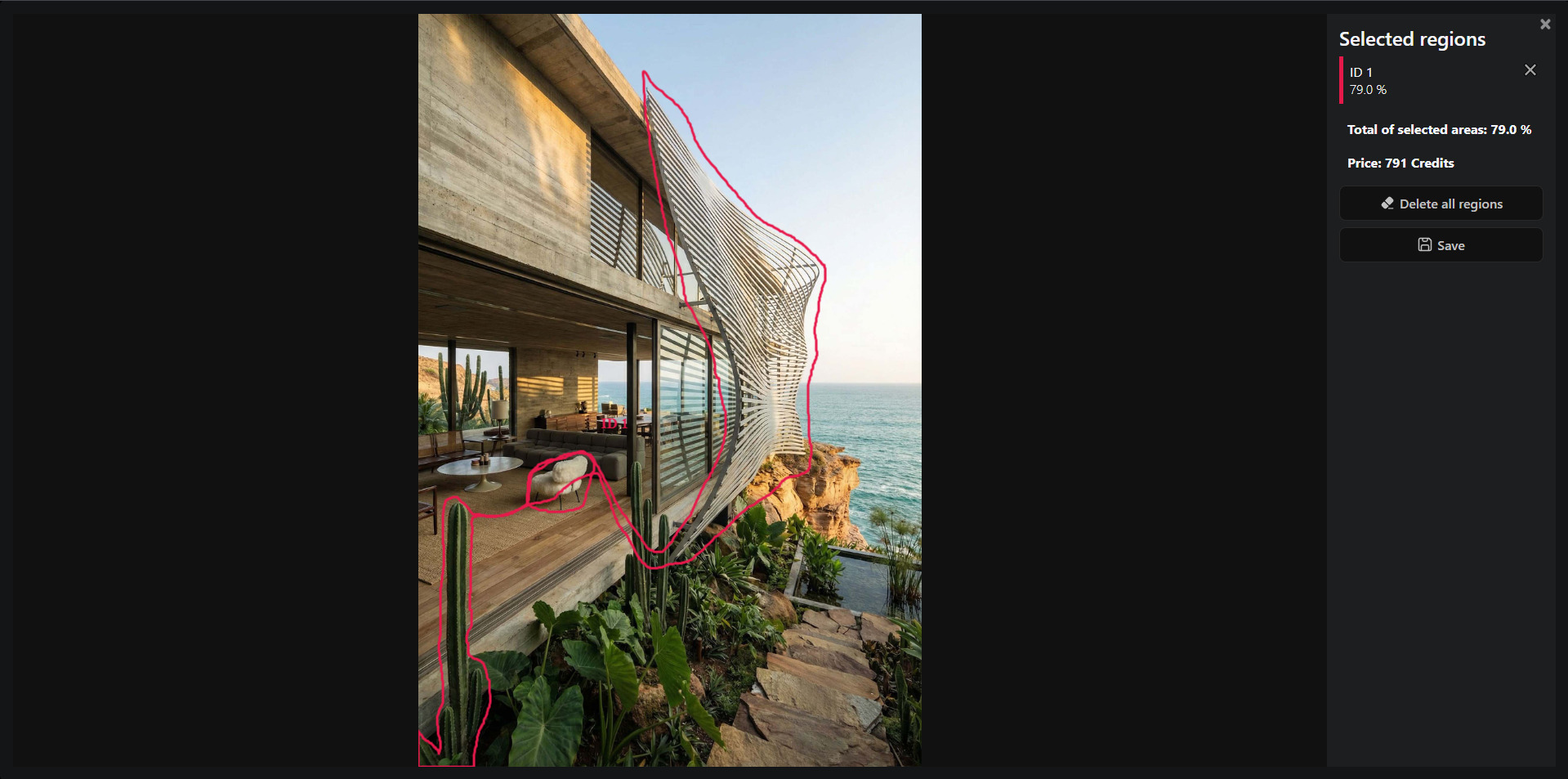
Here is an example of an inefficient selection from a cost perspective. As shown in the screenshot, the total selected area is 79%, compared to 32% in the previous example, making it significantly more expensive. The automatic pricing system calculates the cost based on the full area of each selection's bounding box.
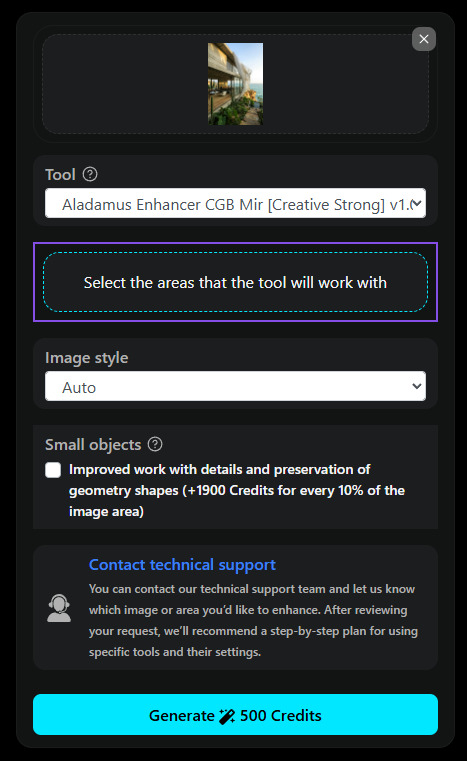
After saving the selected areas, the Select the areas that the tool will work with button changes its appearance:
After saving the selected areas, you can reopen them at any time to review or edit them (if you close the window without clicking Save, your changes will not be saved).
If you switch to another tool (for example, from Aladamus Enhancer CGB Mir [Creative Medium + Saving Geometry] v1.0 to Aladamus Enhancer CGB Mir [Creative Strong] v1.0 or Aladamus Local Micro-Detail Clarity Improver v1.0), all previously selected and saved areas will automatically be used by the newly selected tool.
5. Reference
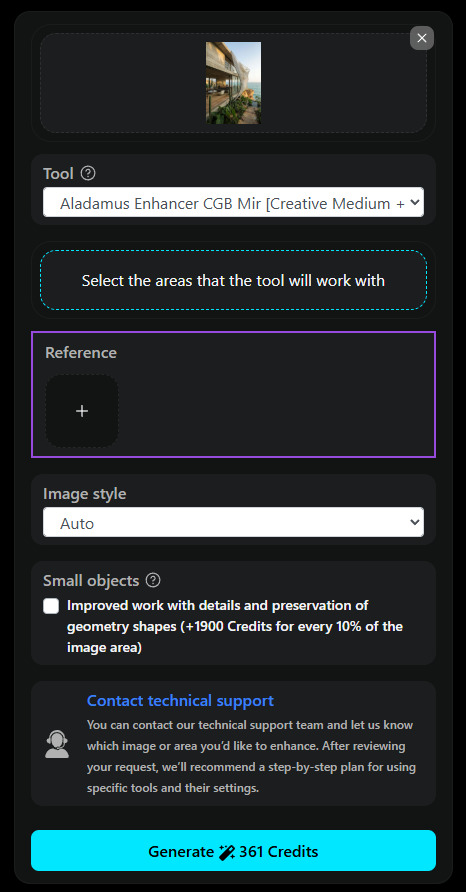
In the Reference section, you can (optionally) upload a reference image. The Aladamus Enhancer CGB Mir [Creative Medium + Saving Geometry] v1.0 tool will focus on it when generating a result and strive to achieve this. At the same time, the reference is used as a guideline. At the moment, we cannot guarantee an exact match between the versions of the tool.
6. Improved work with details and preservation of geometry shapes
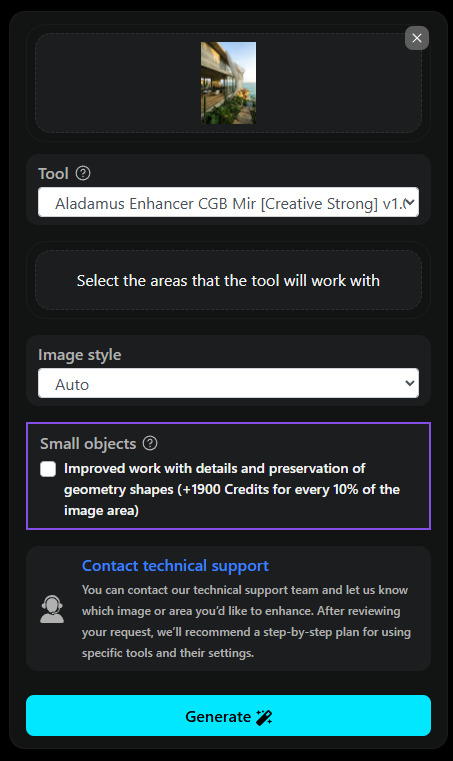
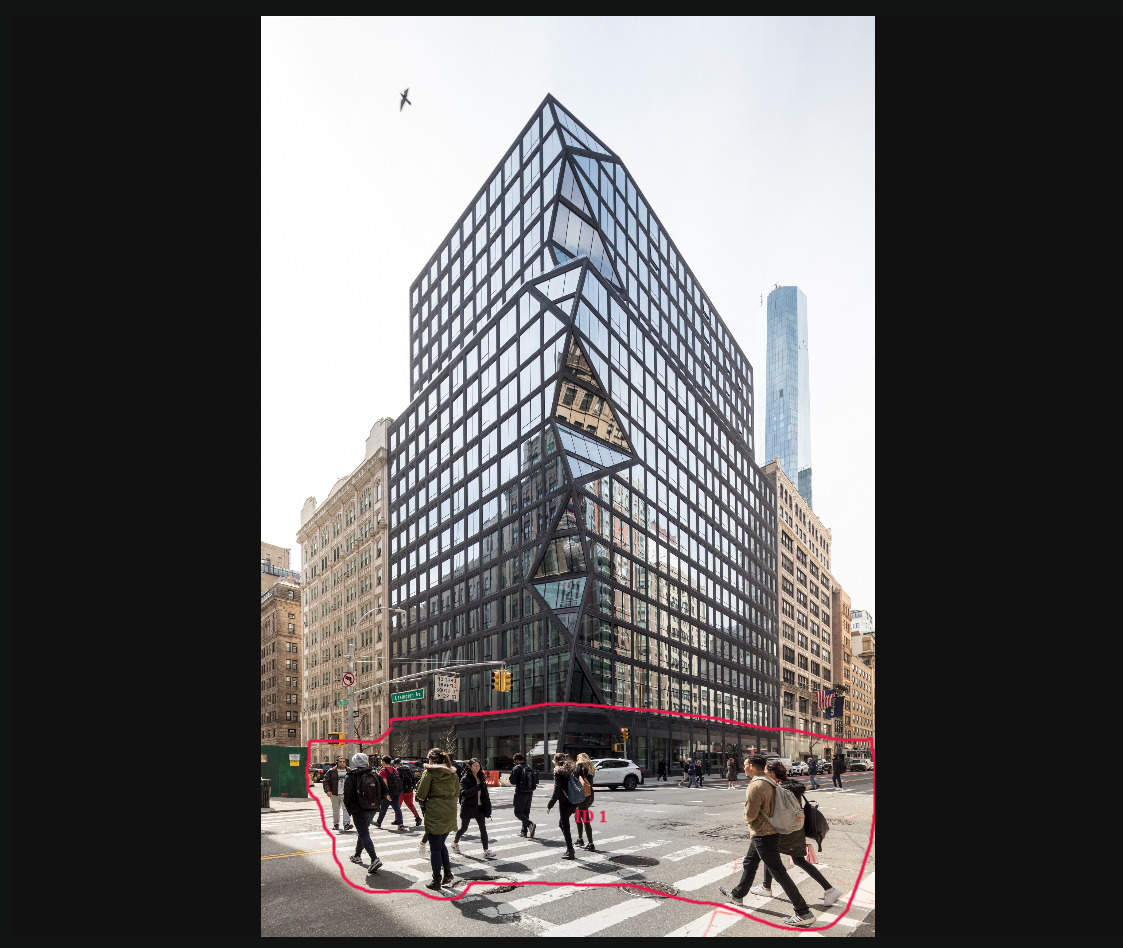
If the selected image area contains small objects (for example, people, vehicles, trees, or other fine details on a building facade) and your goal is to preserve maximum similarity to the original image (geometry, colors, and materials) while enhancing it, you should enable "Improved work with details and preservation of geometry shapes".
In such cases, enabling "Improved work with details and preservation of geometry shapes" is mandatory. Without it, the generation may be canceled with an appropriate explanation. If this happens, you will need to create a new generation task with this option enabled.
The cost of "Improved work with details and preservation of geometry shapes" ranges from an additional 500 to 1900 Credits per 10% of the image area. Since the final cost can only be determined after generation is complete, a deposit of 1900 Credits per 10% of the image area is reserved in addition to the selected model cost before generation starts. If the actual processing cost is lower, the difference is automatically refunded to the user's balance.
Here is an example of an image containing small objects where this option should be enabled:
7. Generation
After completing the settings, start the process by clicking the "Generation" button. The finished result will appear in your History section.